
dsh-terminal-ui
A local-first terminal UI for DeepSeek Harness, built with TypeScript, React 19, and Ink 7.
安装
在 DeepSeek Harness 终端运行:
dsh plugin --profile web add jame100101/dsh-terminal-uiREADME
DSH Terminal UI (dsh-tui)
English | 中文
Unofficial terminal UI for DeepSeek Harness.






Local-first · Session persistence · Tool runtime
🚀 Recommended stable
0.2.0—0.2.xis an official DeepSeek Harness out-of-tree plugin, compatible with@deepseek-ai/dsh@0.1.2-rc.1.0.2.0is the current stable out-of-tree Harness plugin;0.1.0is legacy standalone. See Quick Start.
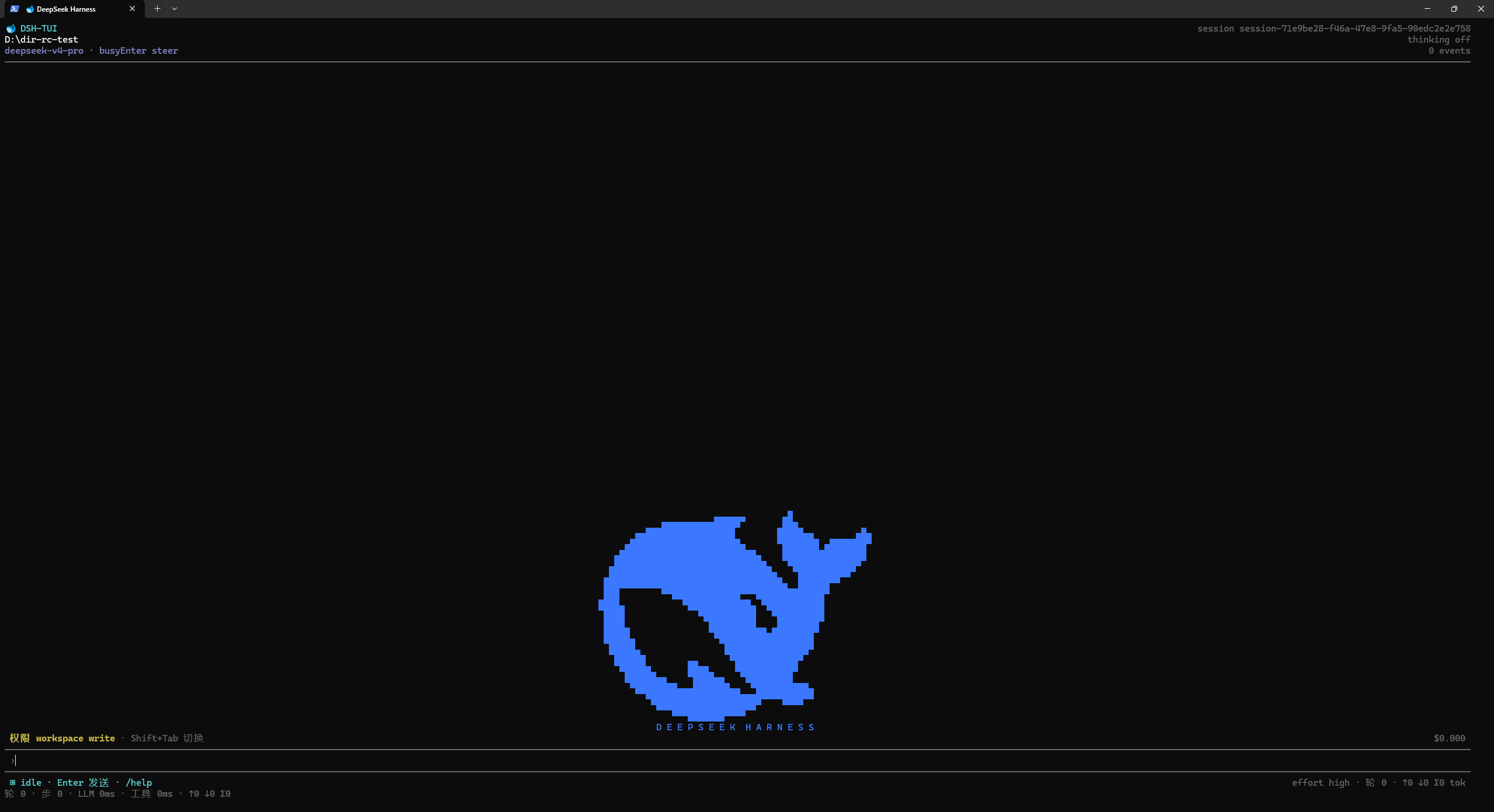
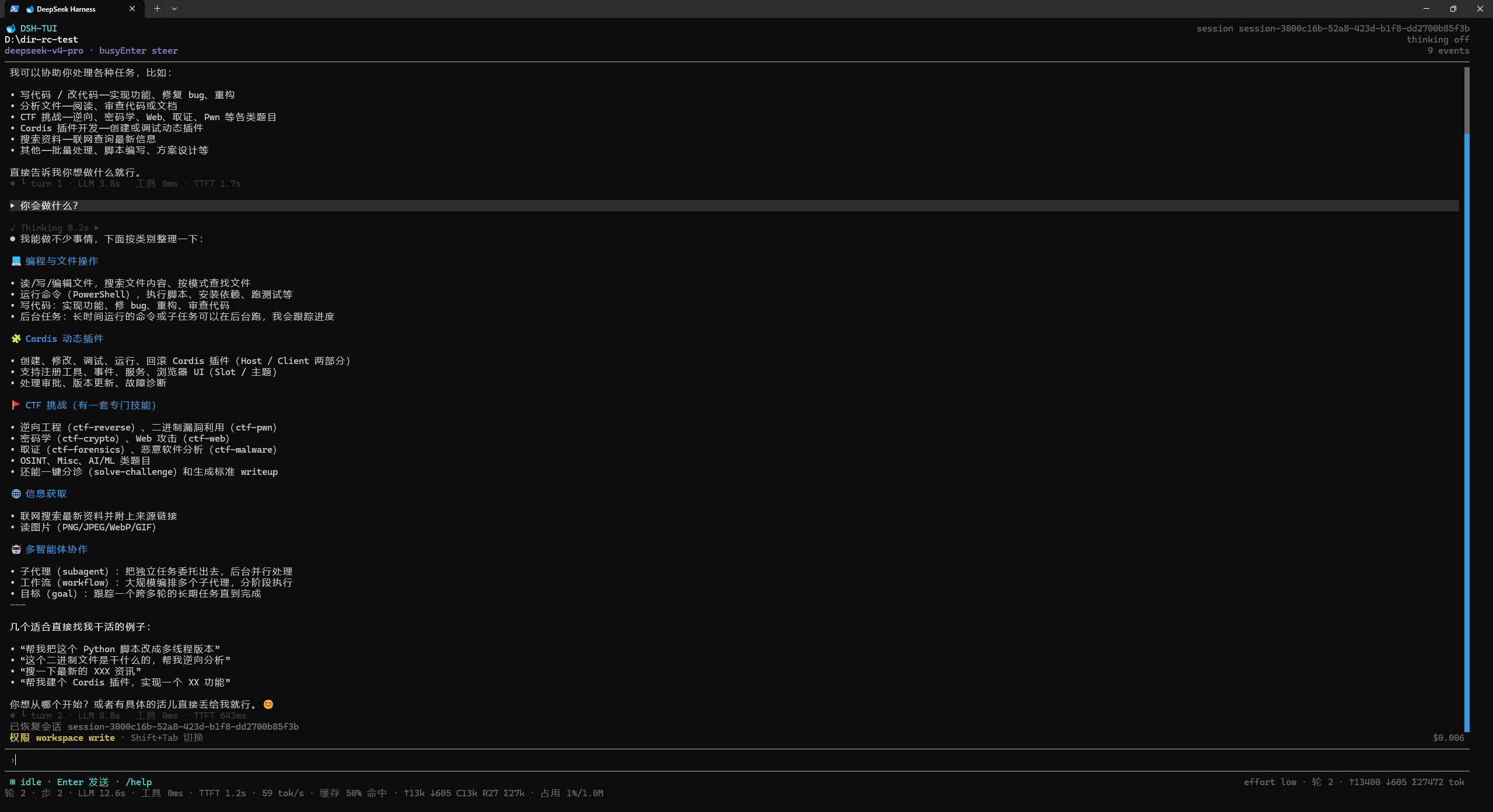
dsh-tui is a local terminal assistant for the DeepSeek Harness agent runtime — a Claude Code-style CLI with a React 19 + Ink 7 interface: thinking shimmer, streaming replies, tool cards, permissions, slash-command palette, persistent sessions, and settings panels.
Quick Start
1. Install Node.js and npm
The package requires the repository's exact engine range: ^22.19.0 || >=24.0.0. This means Node.js 22.19.0 or newer within Node 22, Node.js 24 or newer, and later releases that satisfy >=24. Node 23 and early Node 22 releases are outside the declared range.
npm is normally installed together with the official Node.js distribution; it does not need a separate download. First check your current environment:
node --version
npm --version
Use one of these platform-specific installation paths if either command is missing or the version is outside the supported range.
Windows
Option A — official installer
Download a current Node.js installer from nodejs.org and choose a release that satisfies Node 22.19+ or Node 24+. The official installer includes npm.
Option B — winget
winget install OpenJS.NodeJS.LTS
Close and reopen PowerShell or Windows Terminal after installation, then verify:
node --version
npm --version
where.exe node
where.exe npm
macOS
With Homebrew installed:
brew install node
node --version
npm --version
If an older Node.js is already installed, upgrade it to a version in ^22.19.0 || >=24.0.0. Developers who switch between projects can use nvm:
nvm install 24
nvm alias default 24
nvm use 24
node --version
npm --version
Ubuntu / Debian
The distribution's default apt repository may provide an older Node.js. Seeing a working node command is not enough; check the version before installing dsh-tui.
One copyable NodeSource setup for Node 24 is:
sudo apt-get update
sudo apt-get install -y ca-certificates curl
curl -fsSL https://deb.nodesource.com/setup_24.x | sudo -E bash -
sudo apt-get install -y nodejs

node --version
npm --version
which node
which npm
For development machines, nvm is a user-level alternative that avoids system-wide npm permissions:
sudo apt-get update
sudo apt-get install -y curl
curl -o- https://raw.githubusercontent.com/nvm-sh/nvm/v0.40.6/install.sh | bash
source ~/.bashrc
nvm install 24
nvm alias default 24
nvm use 24

node --version
npm --version
which node
which npm
Use source ~/.zshrc instead when the login shell is zsh. If the host already has an older apt or system Node.js, upgrade or select a supported version before continuing.
2. Install the 0.2.0 stable plugin
Install the compatible official Harness, add the published plugin to a tui profile, and launch that profile:
npm install -g @deepseek-ai/dsh@0.1.2-rc.1
dsh plugin --profile tui add @jame100101/dsh-tui@0.2.0
dsh --profile tui
The plugin command creates a custom tui profile with @deepseek-ai/dsh-base followed by @jame100101/dsh-tui. Published 0.1.x packages are legacy standalone releases with a bundled Harness runtime; 0.2.x packages are out-of-tree plugins for the official Harness.
The plugin manager installs the package's optional dsh-tui thin launcher in the profile-local node_modules/.bin directory, not on the user's shell PATH. Use dsh --profile tui as the canonical launch command. A separate global plugin install is not recommended because npm installs another Harness and Cordis dependency tree for the launcher.
3. Start a project
Run the tui profile from the directory you want to use as the workspace. The current directory is the default workspace:
cd your-project
dsh --profile tui
Set your DeepSeek API key before starting. Bash, zsh, and PowerShell examples:
export DEEPSEEK_API_KEY=your_api_key
dsh --profile tui
$env:DEEPSEEK_API_KEY = "your_api_key"
dsh --profile tui
Keep API keys out of source files and shell history where practical.
You can also enter a credential inside the TUI:
- Type
/settings, then pressTabto open the Models page. - Under API credentials, select the DeepSeek credential and press Enter.
- Type the key (the field is masked and never echoed) and press Enter to confirm.
Credentials are stored locally in $DSH_HOME/.credentials.yaml (default: ~/.dsh/.credentials.yaml), are never displayed, and take effect for the next request without a restart. A credential shadowed by an environment variable is read-only in the settings page.
Common Commands
| Command | Purpose |
|---|---|
dsh --profile tui |
Start the TUI in the current directory. |
dsh --profile tui "<task>" |
Start the TUI and submit a task immediately. |
dsh --profile tui -c / --continue |
Resume the newest session from the current directory. |
dsh --profile tui -r |
Open the interactive session picker. |
dsh --profile tui -r <session-id> |
Resume a session by id, id prefix, or title. |
dsh --profile tui -c --fork-session |
Fork a resumed session at its last completed turn. |
dsh --profile tui -p "<task>" |
Print one task result to stdout without opening the TUI. |
dsh --profile tui -c -p "<task>" |
Resume a session, then run one task non-interactively. |
dsh --profile tui --version |
Print the compatible official TUI host version. |
dsh --profile tui --help |
Show CLI options. |
/help |
Show interactive commands inside the TUI. |
/new |
Create a new session. |
/resume |
Browse and resume a saved session. |
/settings |
Open settings. |
/effort |
Select the thinking effort. |
Ctrl+C twice |
Exit the TUI. |
Exit codes: 0 means success, 1 a runtime failure, 2 a usage error, and 130 SIGINT. --print writes only the assistant result to stdout; diagnostics go to stderr.
Key Features
- Local-first TUI: runs in your terminal instead of a hosted web page.
- Streaming agent interaction: shows thinking, replies, tool activity, permissions, and status as they arrive.
- Persistent sessions: resume prior conversations, browse history, rename sessions, and fork without overwriting the original.
- Print mode:
-pproduces clean, scriptable output for shells and CI. - Slash-command palette: type
/to search available commands;Tabcompletes andEscdismisses. - Settings: General, Models with API credentials, Plugins, Inventory, and agent Presets pages.
- Tools and permissions: bash, PowerShell, file, and web tools use a sandbox-mode bar with approval and ask-user interactions.
- Responsive terminal layout: handles resize, alternate-screen lifecycle, mouse wheel, selection, and scrollbar interaction.
- Unicode-aware display: supports CJK text, emoji, and symbols such as ⚙ in composer and transcript layout.
- Persistent shell startup: the official Harness uses one shared prompt sentinel between the persistent shell tool and its terminal reader, so short commands such as
pwdandlsdo not wait for a mismatched-prompt fallback timeout. - Plugin distribution: the TUI installs as a profile bundle over the compatible official Harness instead of copying its runtime.
Troubleshooting
Migrating from legacy 0.1.x to the 0.2.x plugin
The legacy global @jame100101/dsh-tui@0.1.x bundles Harness; the 0.2.x profile plugin uses official Harness. With Harness 0.1.2-rc.1, bundle resolution checks the host installation before the profile. An old global package can therefore shadow the new profile plugin even after a successful install. Peer warnings alone do not identify this failure.
Check npm ls -g --depth=0, dsh --version, and (Windows) where.exe dsh / where.exe dsh-tui; on macOS/Linux use command -v dsh / command -v dsh-tui. If the legacy global package is present, remove that package only, then repeat the canonical install:
npm uninstall -g @jame100101/dsh-tui
npm install -g @deepseek-ai/dsh@0.1.2-rc.1
dsh plugin --profile tui add @jame100101/dsh-tui@0.2.0
dsh --profile tui
Check DSH_HOME in the same terminal. Its default is ~/.dsh; the profile is ~/.dsh/profiles/tui. In PowerShell the default is "$HOME\.dsh", not "$HOME.dsh" (the latter concatenates the username and .dsh). Inspect the profile's package.json and pnpm-workspace.yaml: bundles should contain @deepseek-ai/dsh-base and @jame100101/dsh-tui, not the legacy @deepseek-ai/dsh-tui-app. dsh plugin ... list may initialize a missing profile and reconcile an existing one; it is not strictly read-only.
If the profile remains broken, close TUI processes, confirm the home path, and back up/rebuild only the tui profile. Windows PowerShell example (after removing any shadowing legacy global package):
$dshHome = if ([string]::IsNullOrWhiteSpace($env:DSH_HOME)) { Join-Path $HOME '.dsh' } else { $env:DSH_HOME }
$dshHome = $ExecutionContext.SessionState.Path.GetUnresolvedProviderPathFromPSPath($dshHome)
$profileDir = Join-Path $dshHome 'profiles\tui'
Write-Output $profileDir # Confirm this is the intended profile before continuing.
if (Test-Path -LiteralPath $profileDir) {
  Rename-Item -LiteralPath $profileDir -NewName ("tui.backup-" + [guid]::NewGuid().ToString('N'))
}
dsh plugin --profile tui add @jame100101/dsh-tui@0.2.0
dsh --profile tui
Keep the backup for reviewing custom profile patches; do not copy the old bundle list back. Never delete the entire ~/.dsh: it also holds credentials, sessions and other profiles. On macOS/Linux, similarly back up only $DSH_HOME/profiles/tui (default $HOME/.dsh/profiles/tui) before reinstalling the plugin. This migration does not patch or replace the official Harness resolver.
node: command not found or Windows says 'node' is not recognized
Reopen the terminal after installing Node.js. If the problem remains, verify that Node.js is installed and that its installation directory is on PATH:
which node
which npm
On Windows use:
where.exe node
where.exe npm
npm: command not found
npm is normally supplied by the Node.js installation. Repair or reinstall Node.js and its PATH entry instead of downloading npm separately.
dsh: command not found
Check the global npm prefix and the executable locations:
npm prefix -g
which node
which npm
which dsh
On Windows:
npm prefix -g
where.exe node
where.exe npm
where.exe dsh
If the global bin directory is not on PATH, add the directory reported by your npm installation or use a user-level Node manager such as nvm.
dsh-tui: command not found
This is expected after dsh plugin --profile tui add: the plugin manager keeps the package bin inside the profile and does not expose it on the shell PATH. Launch with dsh --profile tui.
Node.js version is too old
Run node --version and upgrade to the declared range ^22.19.0 || >=24.0.0. Node 22.0–22.18 and Node 23 are not part of this package's supported engine range.
Linux or macOS global install reports EACCES
Prefer nvm or another user-level Node.js installation so npm's global prefix is writable by your account. Do not make sudo npm install -g ... the default fix; it can create mixed ownership in the npm prefix.
Release Status
dsh-tui 0.2.0 is the current stable out-of-tree Harness plugin under npm's latest dist-tag. 0.1.0 is legacy standalone. Install the stable plugin by exact version:
dsh plugin --profile tui add @jame100101/dsh-tui@0.2.0
Use npm install -g @jame100101/dsh-tui@0.1.0 only for the legacy 0.1.0 standalone line.
Maintenance
Session data and local configuration are stored under the user's DSH data directory. Keep that directory backed up if sessions matter to you, and remove old sessions through the TUI or the supported session tools rather than deleting unrelated project files.
The persistent-shell prompt alignment described above belongs to official Harness. This plugin adds the terminal interface without replacing that implementation.
Reinstall the exact plugin version to update the tui profile after a compatible release:
dsh plugin --profile tui add @jame100101/dsh-tui@0.2.0
Development
This is a standalone out-of-tree plugin repo. It no longer vendors or synchronizes full Harness source. Future Harness updates use dependency upgrades plus adapter compatibility tests, not upstream merges.
git clone https://github.com/jame100101/dsh-terminal-ui.git
cd dsh-terminal-ui
pnpm install --frozen-lockfile
pnpm run build
pnpm run typecheck
pnpm run test
pnpm run verify:repo
pnpm run dsh-tui:pack-plugin
TUI source lives in packages/tui/tui; apps/tui-cli owns the thin launcher, bundle patch, packaging and official clean-room verifier. Validate the local tarball through official dsh rather than a repository-local Harness CLI. Maintain English and Chinese docs together.
Architecture
- React 19 + Ink 7: terminal rendering and input handling.
- TypeScript: typed application and plugin code.
- DeepSeek Harness runtime: plugin-based services for sessions, tools, permissions, persistence, and agent loops.
- Persistent terminal tools: shell and filesystem operations run through the Harness runtime.
- Session storage: local persistence supports resume and history browsing.
dsh-tui (CLI wrapper, apps/tui-cli)
  → official @deepseek-ai/dsh launcher
  → Cordis plugin composition (profile: tui)
  → React + patched Ink TUI plugin (@jame100101/dsh-tui)
  → event-sourced session log → live transcript rows
The wrapper translates launch flags and starts dsh --profile tui. The TUI plugin folds the append-only session log into transcript rows for users, assistant messages, thinking, tool cards, retries, and status, then chooses the patched Ink full-screen renderer for TTYs or a line-driven fallback for pipes and CI.
For a feature-by-feature comparison with the Web frontend, see TUI-WEB-COMPARISON.md.
See docs/architecture.md for plugin architecture.
评价与评分
登录后即可为该插件评分和评价。
5.0 / 5共 1 条评价
- Jjame100101作者8d ago